

With this article we get to the heart of the doozzoo world and talk about one of the strengths of this platform: its apps.
Having so many applications included in a single platform means that the musician doesn't have to look elsewhere: everything is at your fingertips, immediately available without the need to install applications on smartphones or tablets, without having to resort to screen sharing, changes in audio settings, etc. All functions can be used face-to-face and/or remotely (online) with your student, maintaining perfect sync and audio quality. During online lessons, all apps can be controlled remotely. Just like in a face-to-face lesson, the teacher controls everything. Online students will not have to configure anything a great advantage that allows you to avoid wasting unnecessary time and instead to optimize the workflow of your music lesson.
It’s easy to get started!
Go to the doozzoo website (https://doozzoo.com/it/), log in with email and password then click on the “Start session".
After allowing your browser access to your webcam and microphone (just click “Continue”) you will be inside the doozzoo world. To open the apps, just click on the apps icon(the fourth one from the left - it has 9 small squares). And here are your apps displayed in “icon” mode ( Fig.1) or extended (Fig.2)
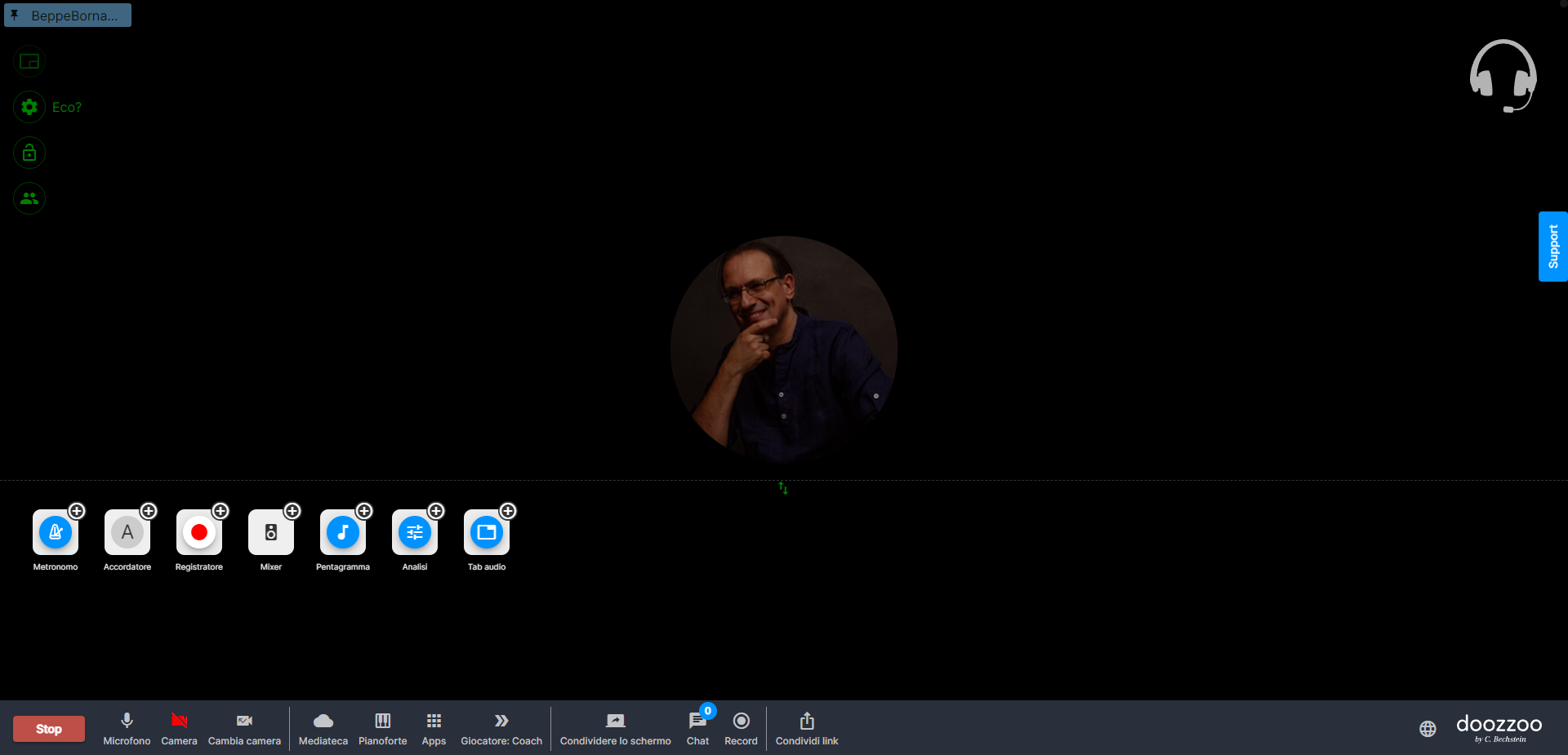
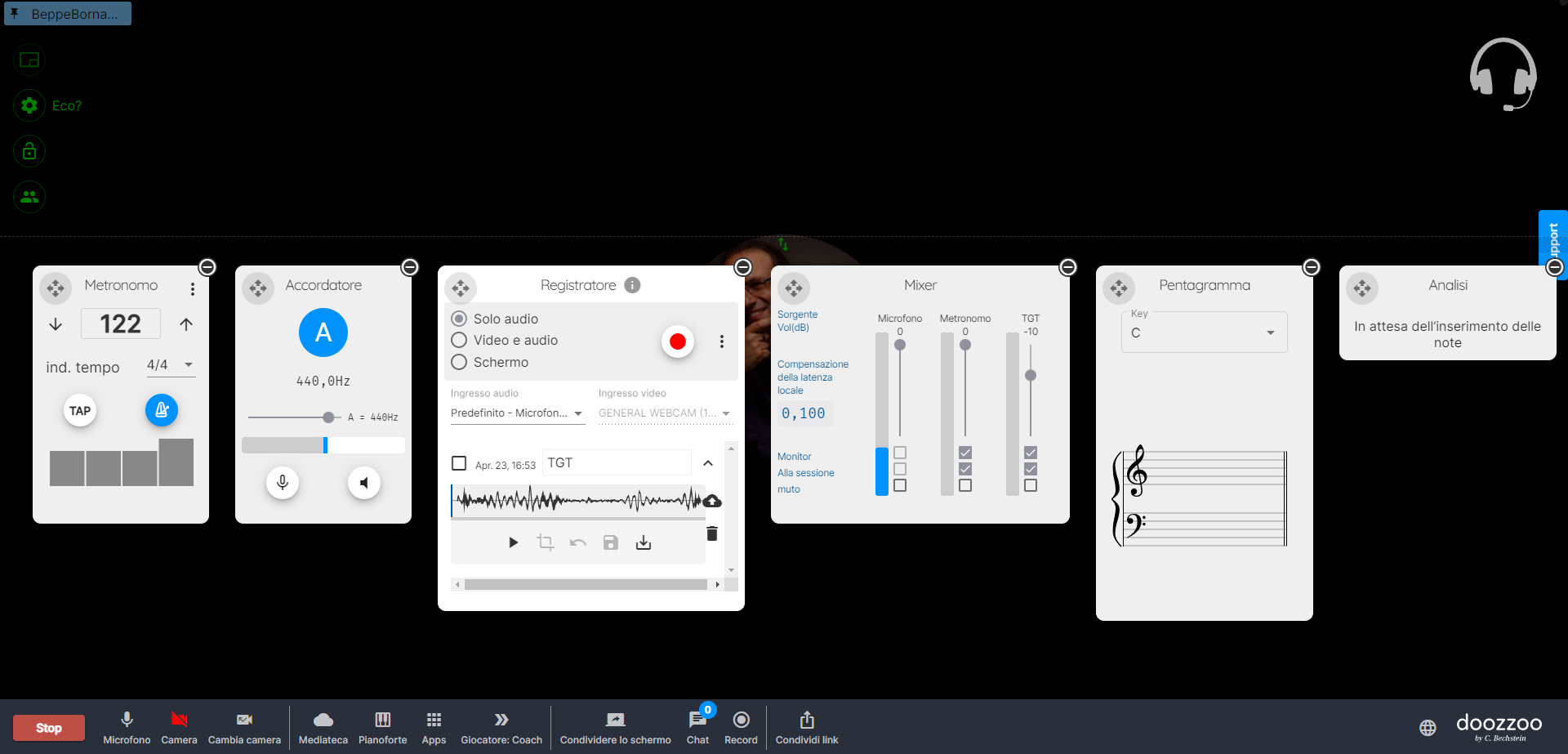
Note If the apps are in "icon" mode, just click on the + button of each app to extend it.
But let's see them now in detail:
“Metronome” app
It allows you to adjust the bpm and set the desired time signature; then select between the metronome being in perfect sync either with yourself or with your online student. A metronome is an indispensable app during music lessons and home study - doozzoo puts it at your fingertips. What if you don't know exactly which tempo to set it at? Simply use the TAP time function: by repeatedly click the TAP button with the mouse, you tell the doozzoo metronome the exact BPM. During metronome playback ( Fig.3) you can also adjust the sound intensity of each beat by clicking on the blocks signifying each beat which will show you the loudness of each individual beat.

“Tuner” app
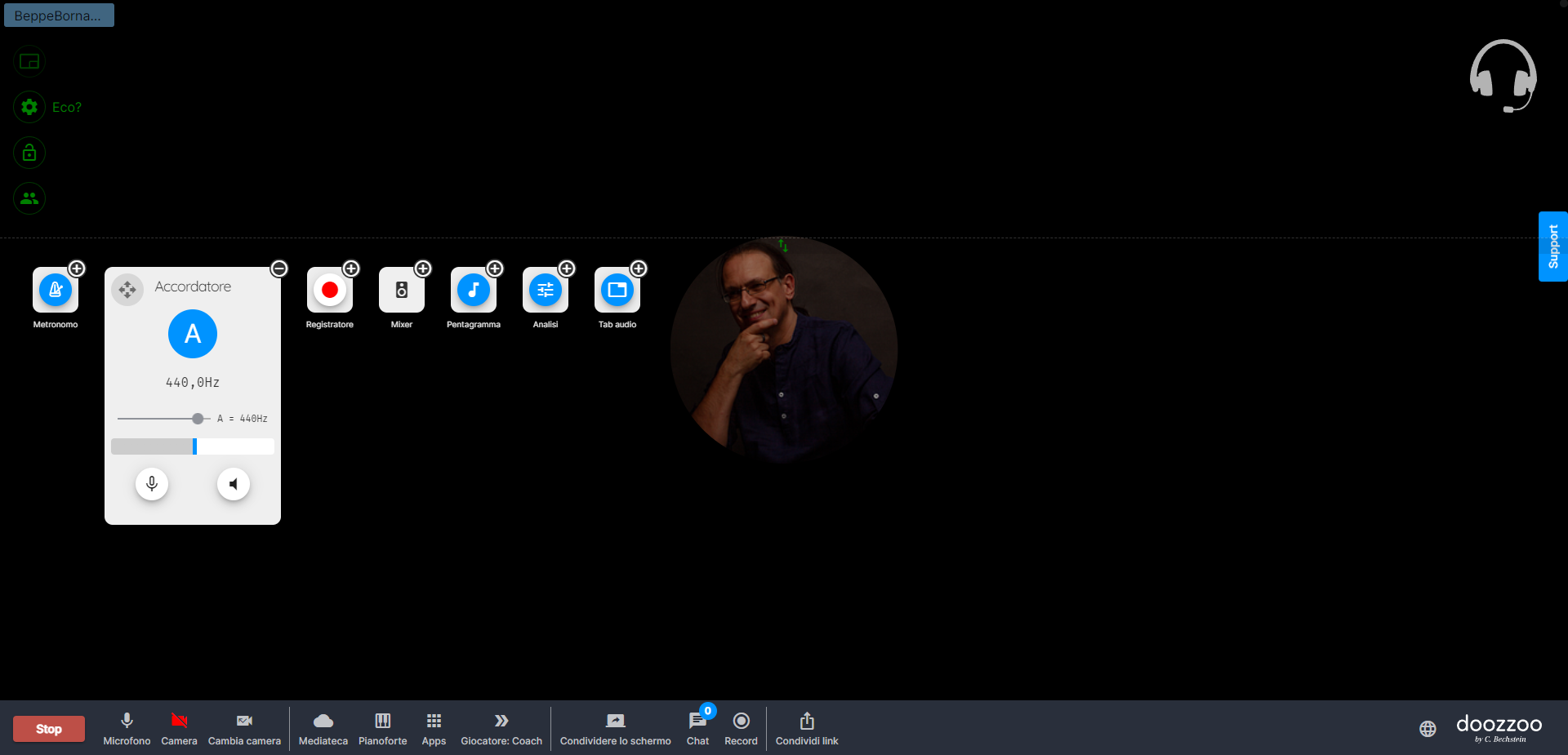
From 415 Hz to 444 Hz - choose the perfect pitch for any kind of music and check your intonation and tuning at any time. By clicking on the little speaker icond and using the + and - buttons you will be able to listen to the entire chromatic scale according to the tuning chosen; this will also display the Hz of each sound.
Clicking on the microphone you can use doozzoo to check your intonation. A very useful tool for ear training, vocal lessons or for anyone trying to get the perfect intonation on their instrument!
“Recorder” app
This small but very powerful application will allow you to record audio or audio-video clips lasting up to 5 minutes; then share instantly with your students!
Click on the button "Set up Recorder"(Fig.5) to choose whether to record audio only or audio and video. Then click on the red button to start recording. Once the recording is complete, save it by giving it a name. At this point you can choose whether to listen to what was recorded or whether to upload the clip directly to your media library where you can then share it with your students. This is a very effective tool that allows each student not only to listen to the performance of their teachers but also to themselvess to work on details of their performance or to refine a specific expression or technique.

App “Staff”
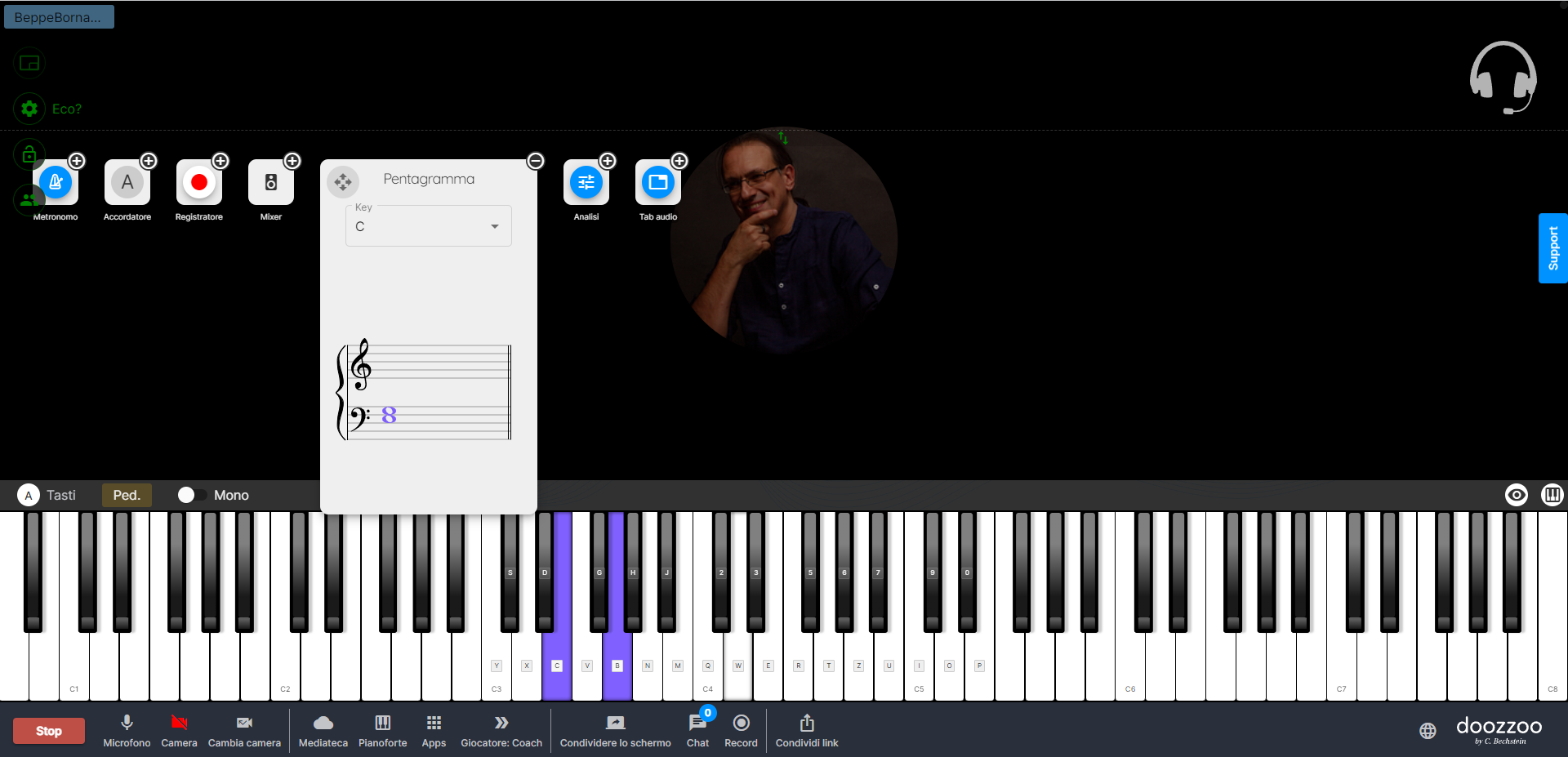
The usefulness of this application cannot be overstated. Opening the app Staff (Fig.6) and the virtual piano(by clicking on the keyboard icon on the bottom of the screen) you will be able to see the notes played on the virtual piano directly on the Staff. This application will also display the notes played by each of the participants in the whereas each student gets their own color assigned, thus allowing the teacher to always have a clear understanding of the work done by each student.
“Analysis” app
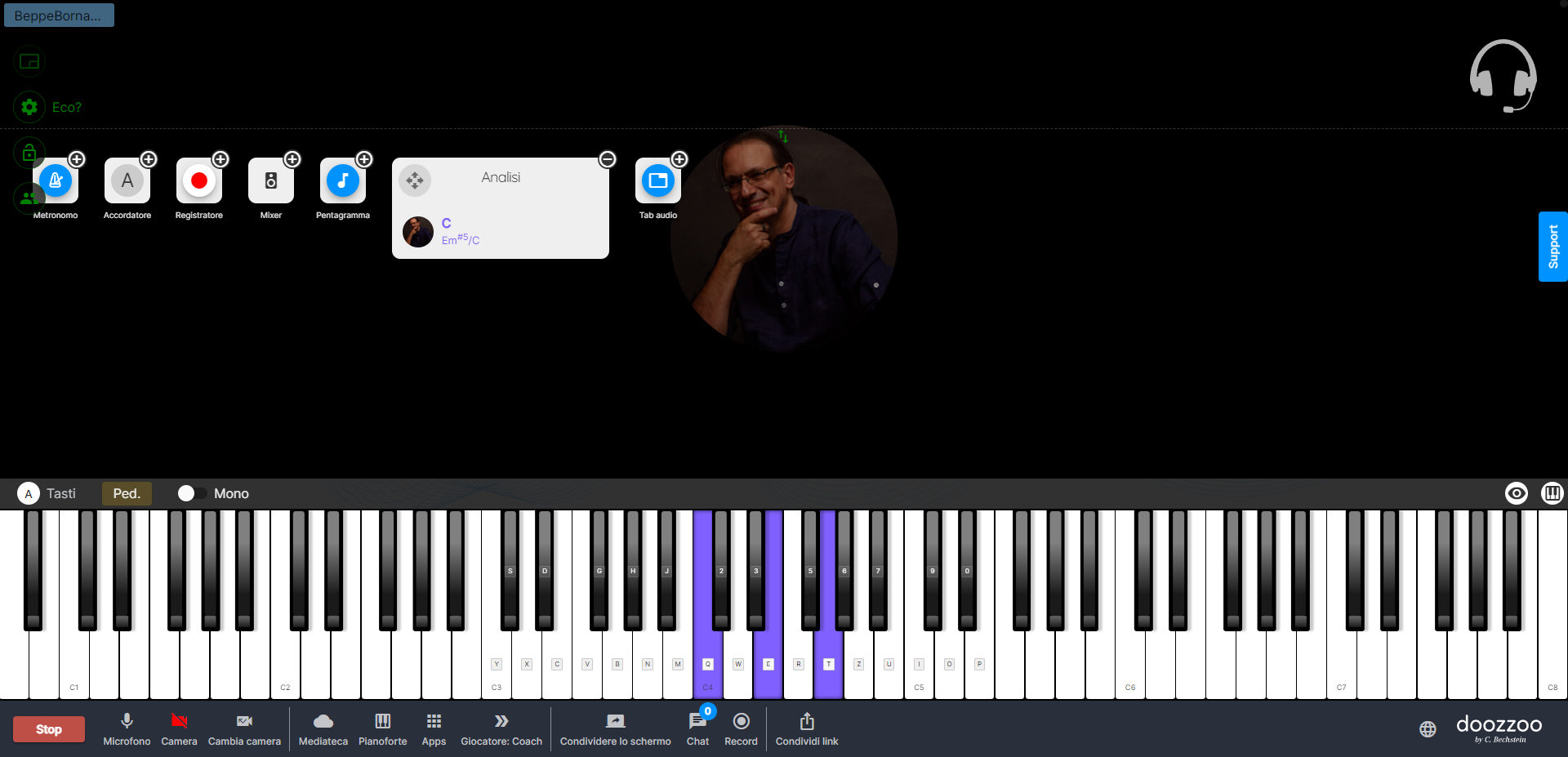
Alongside the previous application, check out the "Analysis"(Fig.7). Indispensable for those who do musical analysis, composition, music theory and more and want to track or demonstrate intervals, chords, extensions, inversions, this app will prove to be an accurate tool! Whether the style taught is classical, pop, rock, or jazz, musicians looking for an immediate verification of what was played to study cadences, progressions, harmonizations and much more will love this quick tool. To see this application at work, just open the virtual piano and play a chord for example. See the analysis appear in the app in real time.
“Audio Tab” app
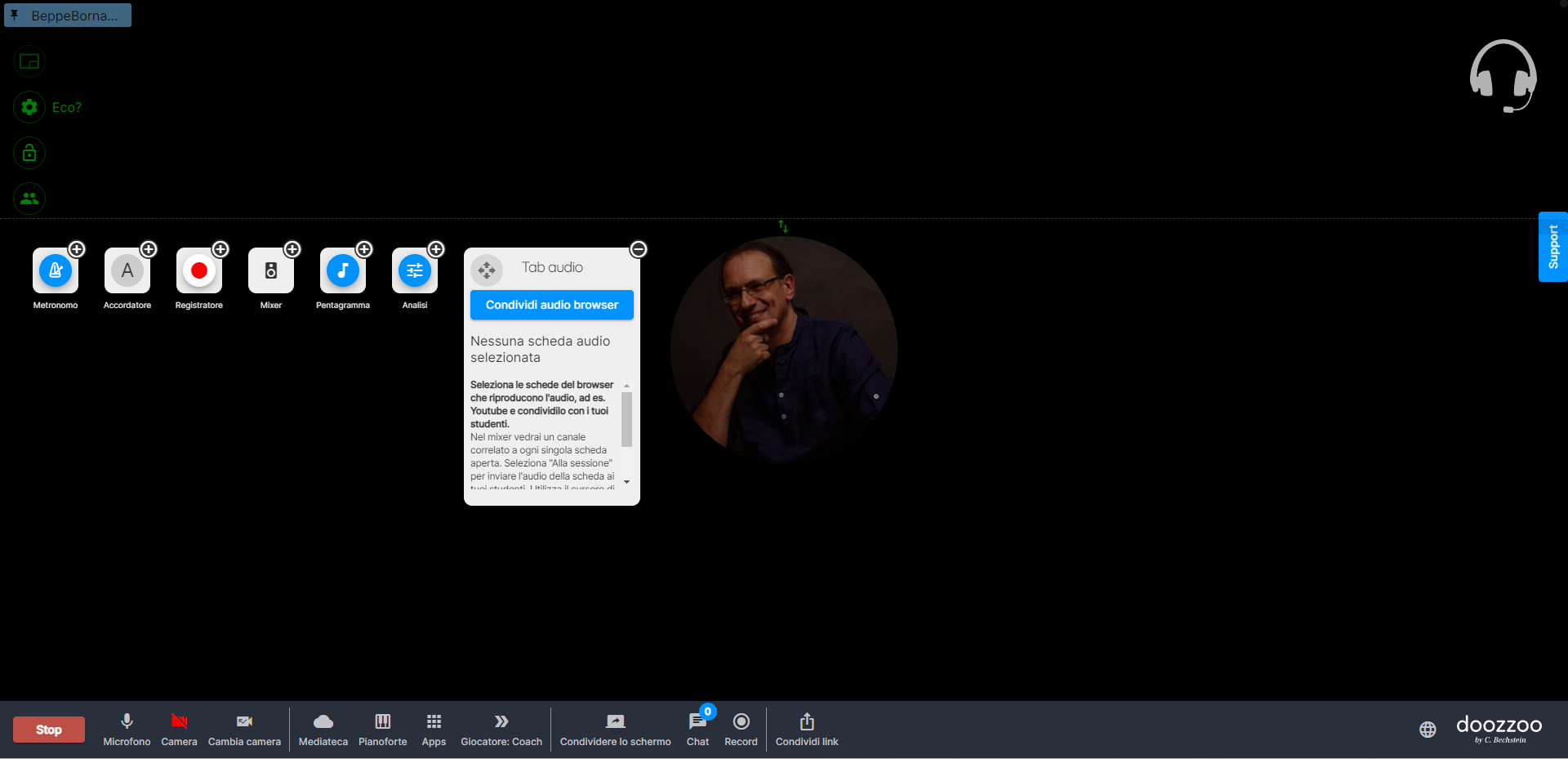
The last application of this series (but certainly not least) is the Tab Audio application (Fig.8): it allows you to share a window (with an audio or video file, open in a tab). Just like in a professional web conference, you can share your entire screen or just a portion, but with very high quality audio.
In the next article we will talk about how doozzoo is able to compensate for local latency allowing online students to play in perfect sync with backing tracks, a metronome and much more.
See you next time and …happy music making in the meantime!


