
"When I use my DAW I no longer hear any sound outside of it, how can I fix it?". This is perhaps the question that has been asked to me most often in recent years by Windows users.
Given that you must always update the sound card drivers to the latest version and that Windows notoriously has greater complexities than macOS due above all to the delicate balance between physical and virtual components from different companies, let's check that you have correctly set some settings in our PC .
We open the Control Panel, we choose Hardware and sound (Fig. 1) and in section Audio we click on Manage audio devices (Fig.2).


The audio settings window will open in classic view.
If we want to speed up the process we can also open the command prompt (key Windows + R) and copy-paste the command control mmsys. cpl sounds .
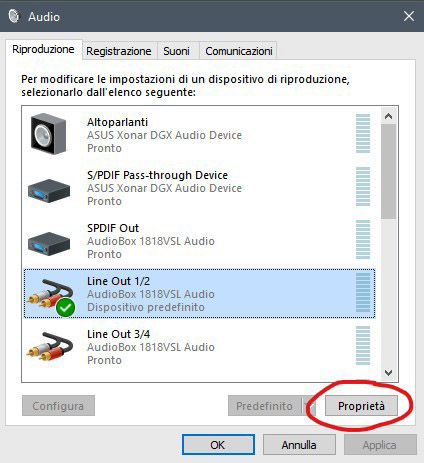
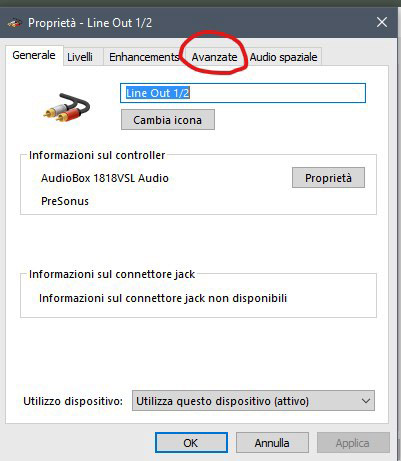
We select the dedicated sound card that we use in the DAW and go up Property (Fig. 3) and then in the tab above Advanced (Fig. 4).
Very often by default we will have a check on the item Allow applications to take exclusive control of the device. We remove this tick (Fig. 5) so that the DAW does not take over the management of the sound card by excluding the system audio and we are already halfway there. Indeed, in many cases we will have already solved the problem.

If the problem persists, let's check another aspect. Windows works by default in stereo (Channels: 2), 16 bit, 44.100Hz. If the projects we work on in the DAW have the same settings, everything goes fine. If, on the other hand, in the drop-down menu of the advanced settings we have settings other than those of the song, the contradiction will lead Windows to not let us listen to any sound and even to send video players such as Youtube to block. When in Studio One Pro I work on a stereo project a 24 bit/48kHz I have to take care to set the same settings in this system audio control panel (Fig. 6).

We can verify that everything is working correctly by clicking on the button Try it now in the advanced settings tab and we should hear a sound coming first from the left monitor and then from the right one.
I recommend creating a shortcut on your desktop in case you need to quickly change the audio device or sample rate of the card.
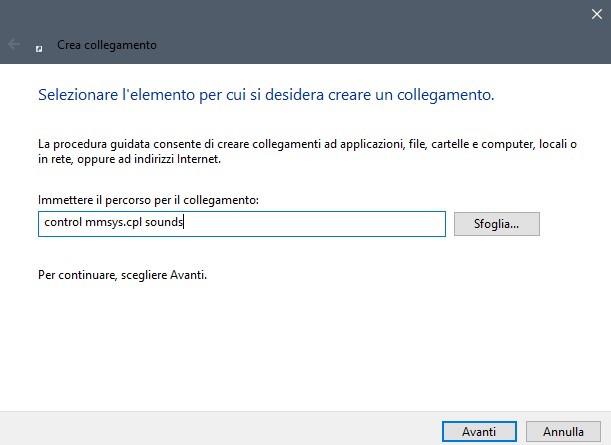
On the desktop with the right mouse button we choose New and then connection.
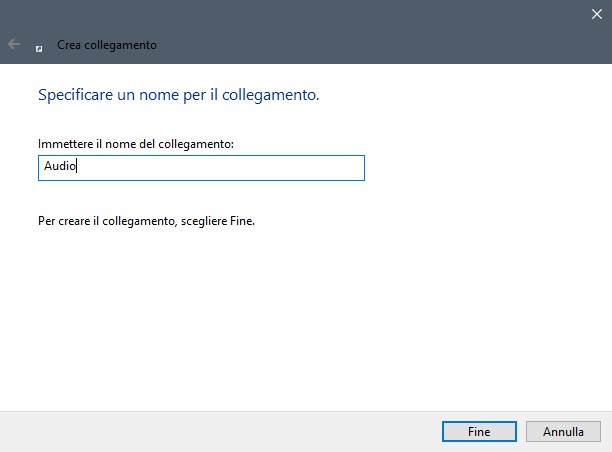
In the section "Enter the path for the connection" we enter control mmsys. cpl sounds (Fig.7) and click on NEXT. In the next window it asks us to specify a name for the connection that we can call Audio (Fig. 8).
For the most ordered and demanding: by right clicking on the icon Audio just created and going on his own Property we have the possibility to change the icon with the key Change icon and choose one that reminds us of the shortcut function (Fig. 9).

My advice is to follow these steps, always keep the drivers updated (even those of the video card) and, absolutely, not to rely on the internal sound cards of the PCs but to buy a dedicated one, even cheap, to limit the whims as much as possible. of Windows and devote your time to making music rather than graduating as a computer expert on Google!