


As technology evolves, so does the way we interface with audio processing software and digital workstations. Over the years, the instruments with which we work the sound are increasingly refined.
The first sound technicians and operators had very few tools at their disposal; going back over the years we see a total lack of automation systems, data and information saving systems and so on.
I remember the story of a mix engineer, now very old, who explained to me how at the beginning of his career, when mixing a film, it was necessary to remember all the scenes of the film reel, all the movements and actions of the scene because there was no way to save the information and automate the mixing process.
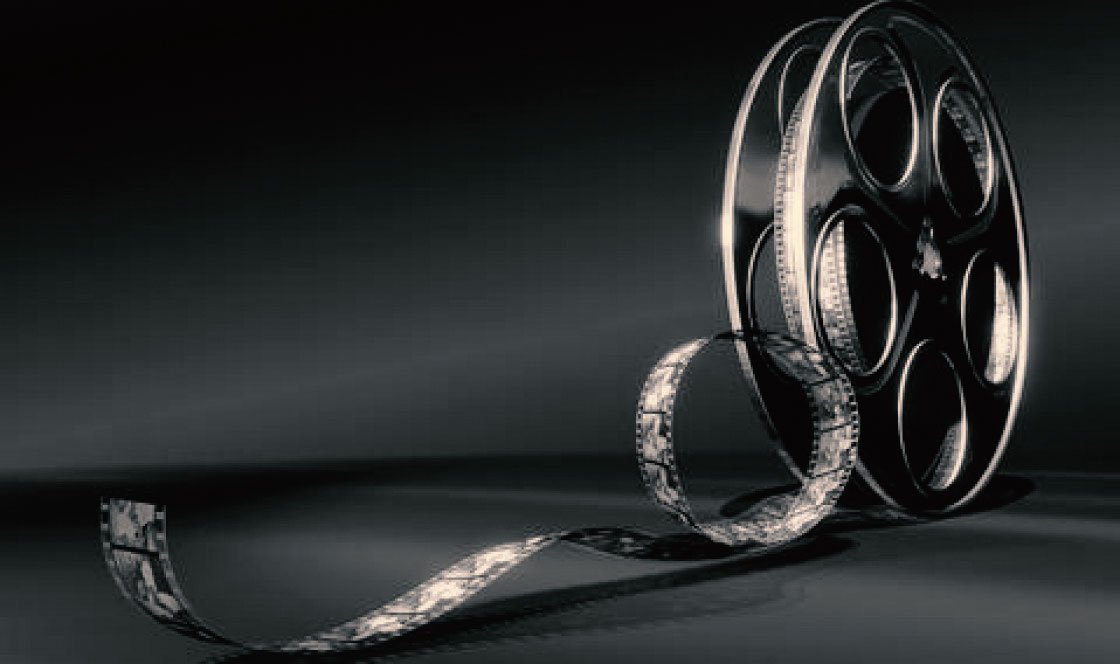
In practice, after having seen the entire sequence of the reel it was necessary to remember that particular moment in which this character entered the scene, how he opened a drawer of a piece of furniture and then walked towards the exit of the house, when he began to speak and go saying, gradually setting all the correct volumes and equalizations and, in case of an error, it was necessary to stop and start the whole sequence from the beginning.
Today all this seems absurd to us because, over the years, technology has enormously evolved, facilitating all the operations of the sound production process and the transition fromanalog al digital has accelerated this process enormously.
For example, we recall the first digital control system of analogue banks, the so-called “total recall”: a computer allowed for the first time, through a graphic reproduction of the controls, to recall a mix session in a precise way. The use of the time code , synchronization between the console automations and the sound processing software have further facilitated the task of the operators up to the current control surfaces thanks to which most of the functions of the audio program are accessible from the control surface itself.
EUCON, the control protocol Ethernet made by Avid, is a further step forward in controlling audio applications and digital workstations, resulting in greater efficiency and faster workflow. EUCON is currently supported by a wide range of applications, including Pro Tools, Logic Pro, Cubase e New.
Avid Control combines the tight hardware / software integration and high-speed communication power of EUCON technology with the multitouch controls of iOS. This is a free application that allows us full control of our favorite audio software directly from ours tablets.

We can integrate the tablet into the setup of our digital workstation both if we have compatible Eucon control surfaces (such as Avid s1, s3, s4, Artist series etc) but even if we do not have it. All this to record and mix faster, to facilitate the viewing of the tracks, to access the program functions more quickly via a touch screen interface.
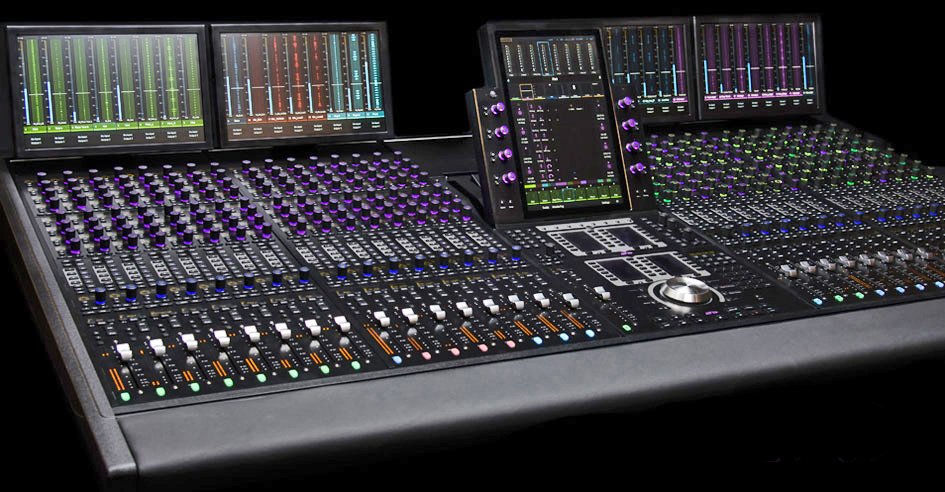
In practice this application installed on the tablet (available for both devices Apple and Android) allows us to work in a similar way to working on the top of the range control surface Avid s6 whose operations center consists of a Master Touch module which allows full access to all elements of the system and mix through an adjustable touch screen, as well as knobs and other controls.
As far as installation is concerned, you must first download the software Eucontrol from the Avid website after registration (www.avid.com) and install it on your computer. The latest driver release (20.1) is compatible with macOs Sierra 10.12 and above and Windows 10. I have installed it on Windows 8.1 and it works perfectly. However, it is necessary to install all the updates of the operating system (via Windows update) otherwise you risk running into problems during the installation phase.
Next you need to install the application Avid control by downloading it from the Apple store (or from the GooglePlay / Amazon app for Android devices).
Both the tablet and the workstation must be connected to the same network, usually the computer via etherne cablet and the tablet to the network Wi-Fi.
In the Eucontrol settings (in the section MySurfaces) it is then necessary to specify which devices are present in our system (in other words if you have only the application or even compatible Eucon control surfaces.)
Finally, once the connection between your controller (s) and the Eucontrol software has been established, you need to enable Eucontrol in the audio program settings.
We just have to launch the application and check that the names of the tracks of our work session are displayed under the faders of the main screen (MIXER) of the application.
The MIXER window
As you can see in the image, in the MIXER window we find the faders and all the main controls associated with them: SOLO and MUTE keys, key to arm the track enabling it to record, pan, meter (both the main meter and a second meter that displays the gain reduction on that channel, if for example a compressor has been inserted), key inherent to the automation mode. Graphic functions including Pan, EQ and dynamics procession are also displayed.

At the bottom of the window (and this is the case for all application windows) we find the main transport controls (PLAY, STOP, RECORD, REWIND, etc.) and the key to access the SoftKeys which we will talk about later. At the top instead we have theUniverse Scroller to quickly move between tracks and the time code counter (current position counter). If we perform a finger swipe on the tablet screen, to move between the tracks, they will automatically move on the audio software screen. Same thing if we select a track or change the position of a fader, all operations will be reflected in our audio software.
Let's move on to the second and very interesting window (and relative display mode) provided by the application, called TRACKS.
The TRACKS window
In this window we have an immediate display of all the traces of our work session (up to 96 tracks displayed simultaneously) with their respective names, as well as indications for SOLO, MUTE, Input monitoring, record status, automation mode and even a meter for each track. We also have four main functions to intervene on our tracks, namely the function INPUT, RECORD, SOLO e MUTE. We must first select the function we are interested in, for example MUTE, and then click on the tracks we want to change.

Generally, during the processing phase, we proceed in this way: the same color is matched to all the tracks that are part of the same specific category of sounds (for example to all the rhythmic instruments of a session of a musical mix or all the sound effects specials of a film mix) in order to have a total view of all the components that make up our session in the TRACKS window, allowing us to intervene immediately.
In this way we can simplify and speed up the pre-mix phase of individual groups of sounds before moving on to the final and definitive mix.
This process is further facilitated by the selector which allows us to specify the type of tracks to be displayed.
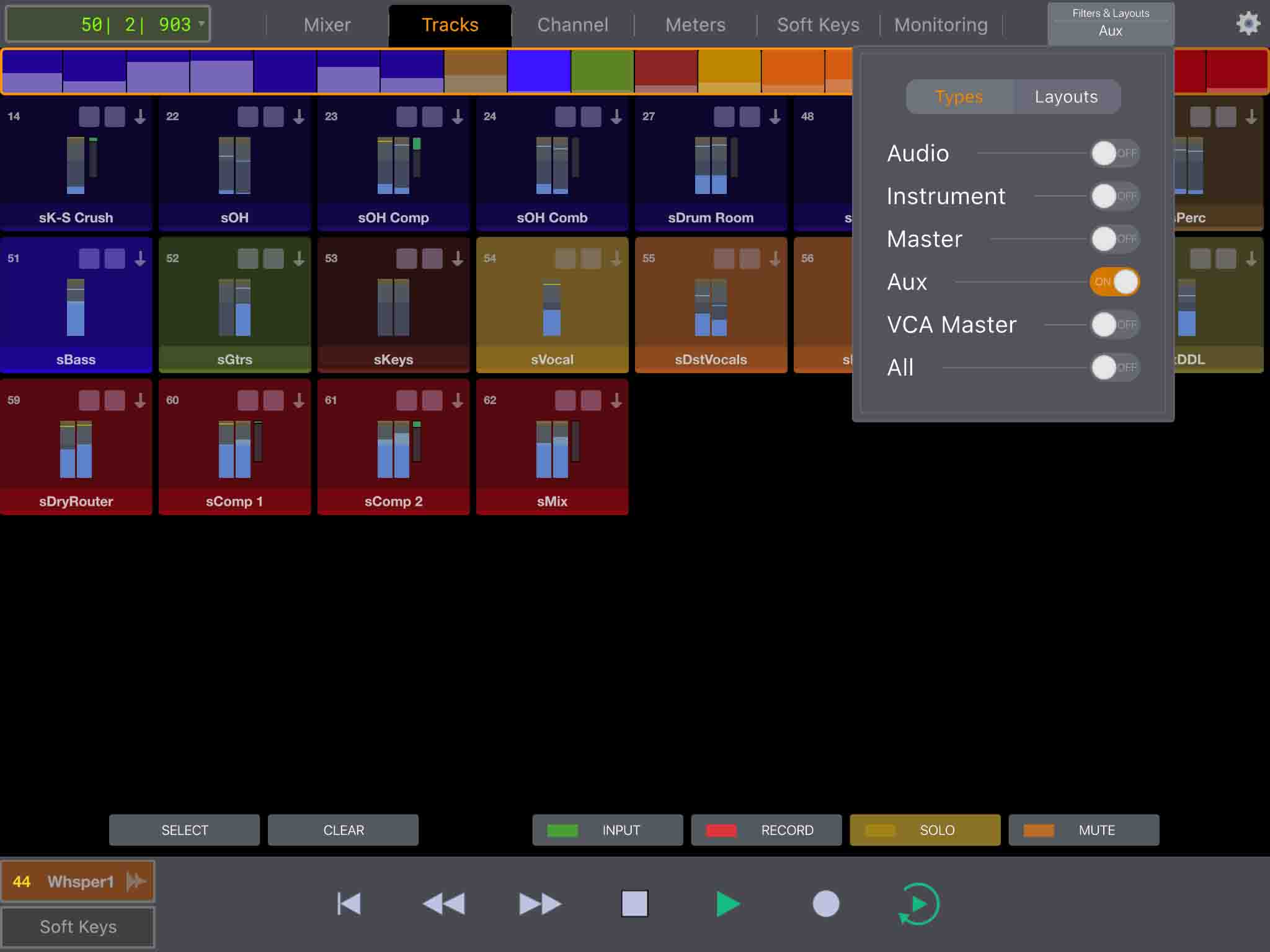
For example, we can decide that we want to view and intervene only on the auxiliary tracks of our session.
The selection of the type of track is also reflected in the mix screen where only the tracks belonging to the specified category will be displayed.
If then after selecting a track we move to the CHANNEL window, here we access a whole other set of functions and controls.
The CHANNEL window
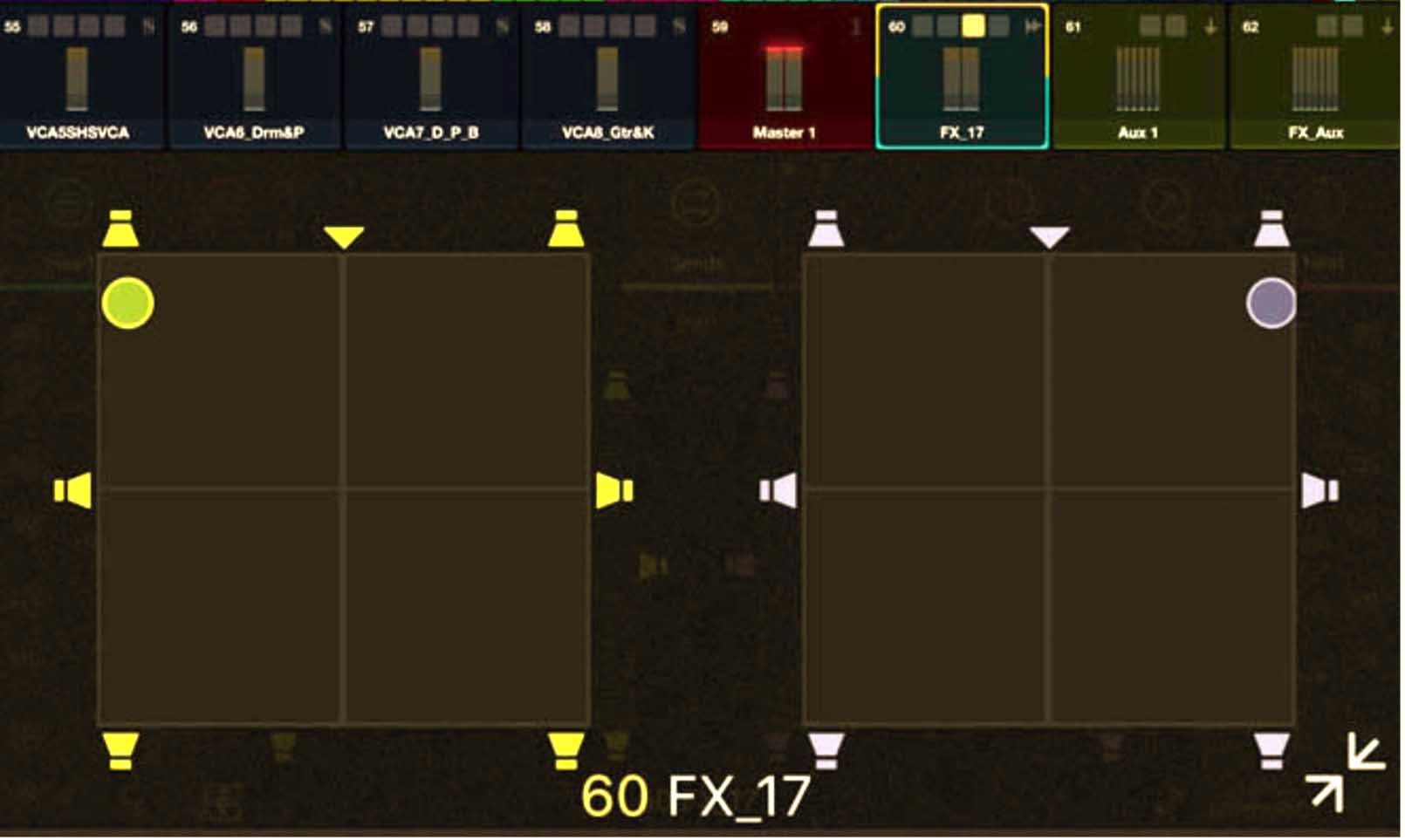
This window allows us to view and select different functions and parameters directly from the tablet screen (or through the appropriate potentiometers if you have theAvid Dock), insert plug-ins, assign aux sends, access the surround panner and much more.

For those who work with audio in multichannel format, the possibility of using a surround panner on your tablet is particularly useful and exciting as the surround joysticks are generally implemented only on very expensive high-end consoles and the use of the mouse alone is instead particularly limiting.
Another very useful function and able to speed up the workflow concerns the so-called SoftKeys.
The Softkeys window
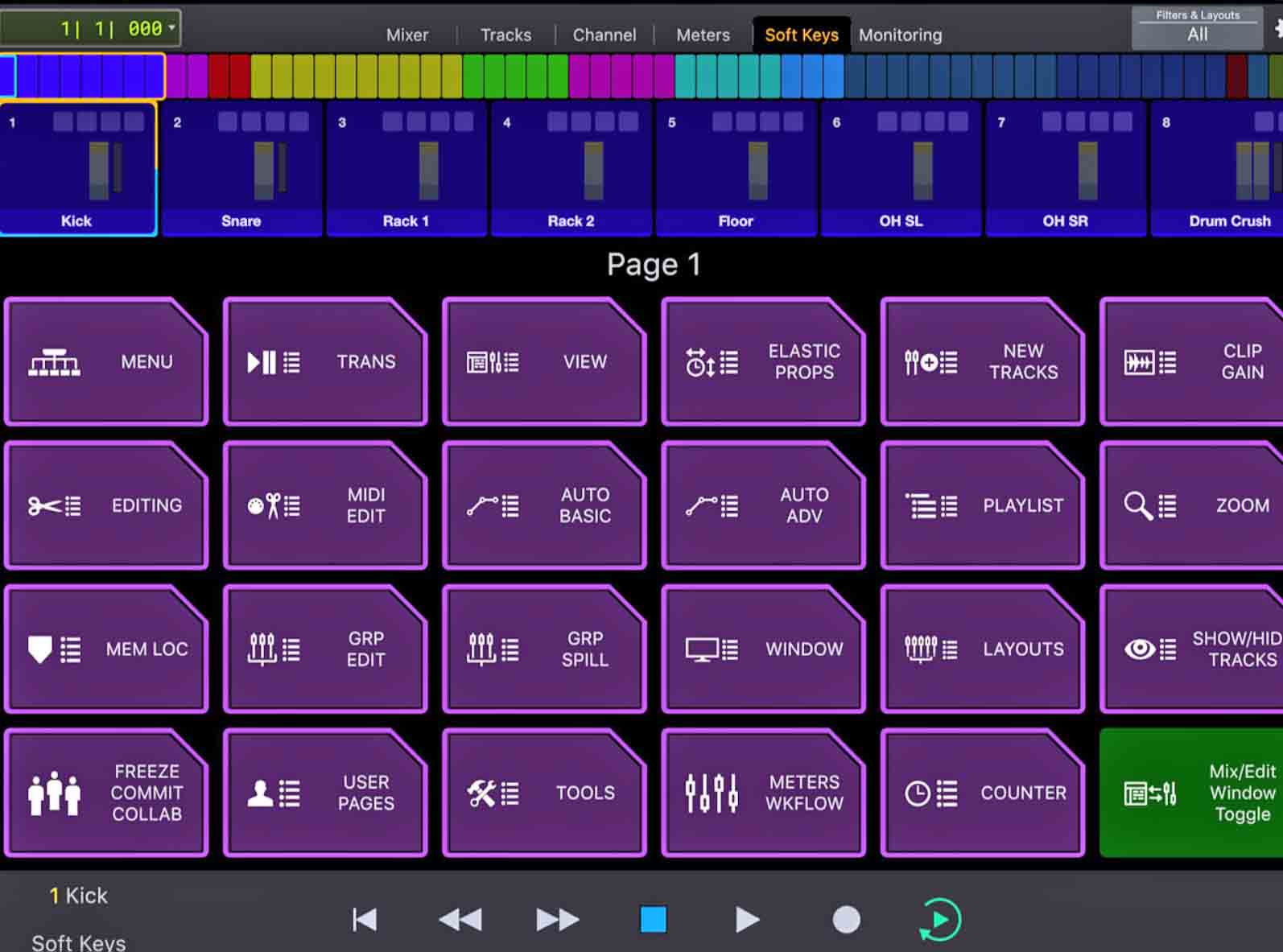
These are keys that allow quick links to most of the functions of Protools (or other compatible Eucon audio software). They can be compared to shortcuts that is, the key combinations with which you access the software functions without going through the various menus and submenus.
From the window SOFTKEYS you can access the set of all softkeys divided into categories. By clicking on the softkeys button at the bottom of any of the application windows, you can access the so-called primary softkeys. Here we can gather all the shortcuts that we are used to using habitually and repeatedly in order to access them very quickly even if we are in the CHANNEL, TRACKS window or in another application window.
We can thus decide for example to insert the function among the primary sofkeys consolidated to "consolidate" the audio clips, or the time-stretch function in case we are editing dialogues and we often resort to this function, we can insert the key to set the automatic punch of the writing of an automation on a track, in short, based on to the specific needs of a process and to our modus operandi we will decide which functions to include among the primary softkeys.
Finally, we have two other windows, these are the METERS window for viewing the audio signals and the MONITORING window.
The latter allows you to assign and manage audio monitor controls. The MONITORING section supports various applications and hardware such as Pro Tools | MTRX and Avid XMON as well as software such as New, Cubase e Pyramid.
Basically we have the possibility to choose between different sources and assign them to different distinct output configurations (I may have to manage in my setup, for example, two different monitor configurations, a 2.0 listening for stereo mixing and a 7.1 for a multi-channel mixing).

Note: Each meter displays, in addition to the signal level, graphic functions of Pan / EQ / Signal Dynamics, Input and Output assignments, Automation status, and Group ID.
We don't want to go into too much detail of the multiple functions and configurations of the application but rather understand the type of technology and its concrete use.
When I discovered it for the first time, I thought of an application aimed at a non-professional audience who wants to "have fun" driving their audio software through an app installed on their tablet, even simply as a consequence of not having a digital console or surface available. control.
And so the first time I saw a iPad installed on an Avid Dock, next to a control surface inside a mix room, I didn't even bother to turn on the device, I started mixing using fader e knots of the control surface and the usual shortcuts and functions of the audio software as was my usual habit. The work went well and the idea I had was that this was simply an unnecessary expense faced by the sound post production plant.
But now, later I found myself working on an Avid s6 control surface, the one you saw in the image at the beginning of the article. Here the question was quite different, as the Master touch module is located in the central section and constitutes a real operations center that allows access to system elements through an adjustable touch screen (in addition to knobs and other controls), and a similar device, mounted on a highly professional console, could not than to attract my attention, shouting: use me!
With the natural excitement and curiosity you feel when you are faced with a new and never used technology, with the right dose of patience (and armed with the technical manual), inserting some new habits only gradually and in small doses so as not to lengthen the times of processing, here after a short time I found myself managing plug-ins, viewing, selecting or changing audio tracks, accessing recurring functions, via the module touch screen and the knobs associated with it.
Back then in my personal studio, with a console reduced in size and much older (but still perfectly functional) the step was short: here I placed my beautiful iPad in the center of the console to act as a Master touch module and here I am working in a similar to how I had done in the large mix room of the plant.
We can conclude that there are many ways to use Avid Control and Eucon technology. For those who only have audio software without any peripherals, it can simply be an aid to mixing using the on-screen faders and other available functions. For those who have a digital console or a control surface (even not Eucon compatible), it can be a way to integrate missing hardware devices into their set up: for example to add meters, or surround panners. However, it can also be an opportunity to fully exploit all the features of the application, allowing greater control over the complexity of the processing that we have to face, and speeding up the workflow.
And if we have a compatible Eucon control surface (such as the Avid s1 shown in the figure) and an Avid Dock, well in this case we have reproduced, in a reduced form, the high-end Avid s6 control surface , and his highly professional approach to audio processing.

Over the years we have witnessed a continuous evolution of what are the fascinating technologies for working audio, and we found ourselves learning to work with analog recorders, then with digital multitracks on tape or other media. We have seen digitally controlled analog consoles and digital consoles synchronized with computers and sound processing software, and many other devices and technologies of all kinds. The digital has become increasingly popular, ending up wanting to try to bring together all the functions that were performed by different devices in a single large system (perhaps sometimes at the expense of a yield and a warmth that has been lost). This, like all technological processes, is a mysterious process and no one knows which direction it will take, nor which technologies will be abandoned and quickly replaced.
In any case, the Eucon technology and protocol constitute an unquestionable evolution and novelty in the great process of audio processing, management, treatment in multiple fields of application.
Giancarlo Petroni
Useful Information
Link: Avid control


